Lectern Viewer
The Lectern Viewer is a React component library for displaying Lectern data dictionaries. It turns a dictionary's JSON schema into readable, interactive views so researchers and data submitters can understand data requirements before they submit.
The library is published as @overture-stack/lectern-ui and can be embedded in any data platform. It reads Lectern dictionary schemas and renders them as a scrollable, per-schema table view, with an entity relationship diagram available alongside it.
The Lectern Viewer is an early-stage component library and is not yet production-ready. Expect breaking changes to component appearance, behaviour, and interfaces before a stable release.
This page describes what the Viewer shows a reader. To embed it in a platform, see Setup; for the full component and prop listing, see the Reference.
Where the Viewer fits
The Viewer is the presentation layer of the submission workflow. It is typically used alongside:
- Lectern Server: the REST API that stores, versions, and serves the dictionary schemas the Viewer renders, and that generates the submission templates the Viewer offers for download.
- Lyric: Overture's tabular data submission service, which validates submissions against those same Lectern schemas.
The Viewer is being developed initially for the Pan-Canadian Genome Library (PCGL), which will use it to communicate data requirements to researchers. That implementation is intended as a reference for how other platforms integrate the components.
The dictionary table view
The dictionary table view is the Viewer's main surface. It renders a dictionary header, a toolbar, and one collapsible accordion section per schema. Each section contains that schema's fields in a table.
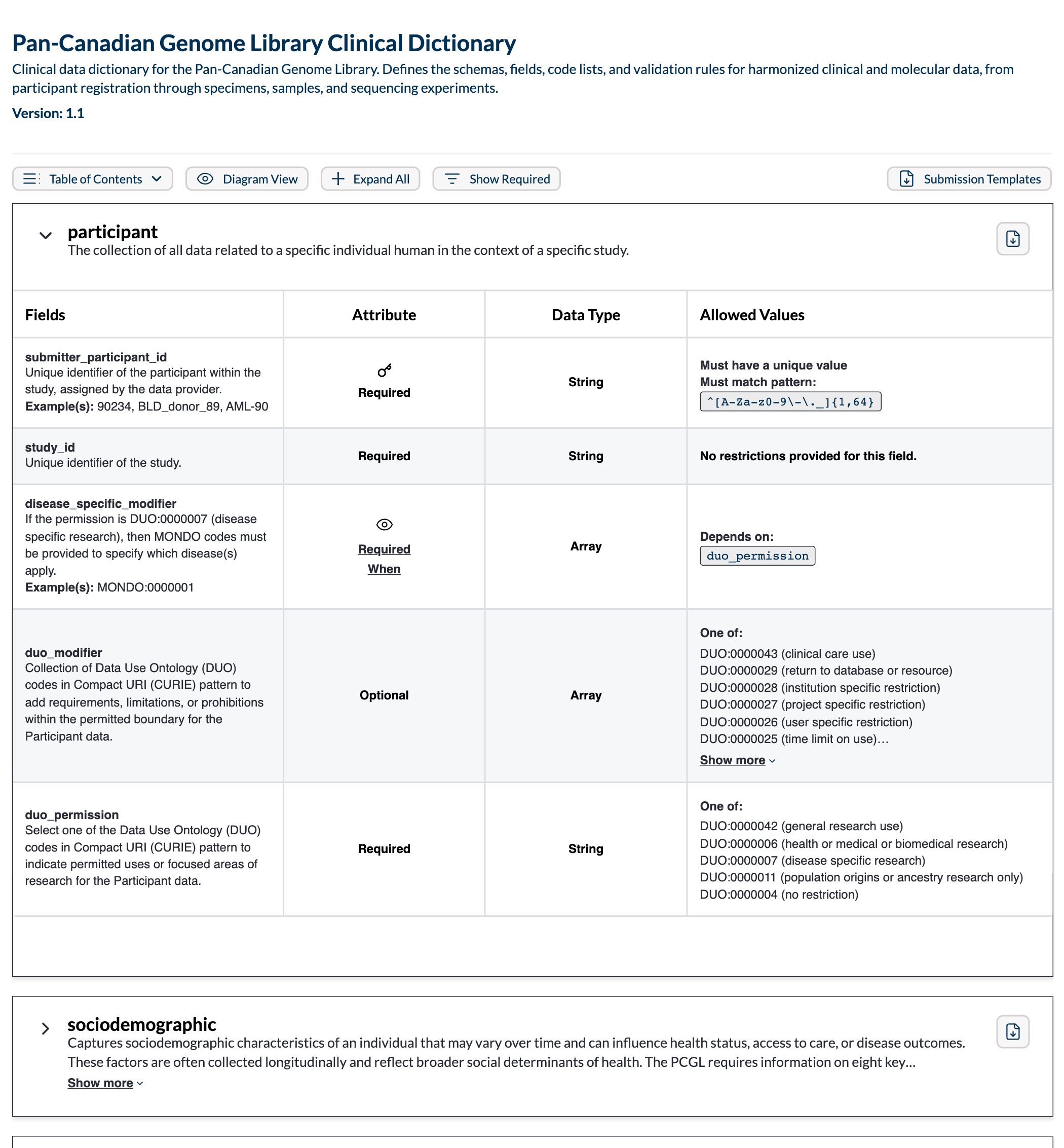
Table columns
Every schema table has four base columns:
| Column | Contents |
|---|---|
| Fields | Field name, description, and any meta.examples values. |
| Attribute | Whether the field is Required, Optional, or Required When (conditionally required). Unique-key and foreign-key fields are marked with a key icon. |
| Data Type | The field's valueType (String, Integer, Number, or Boolean), or Array for fields that accept multiple values. |
| Allowed Values | Value restrictions such as code lists, ranges, and regular expressions, including those inherited from the schema, and unique-key and foreign-key relationships. |
Long descriptions, example lists, and allowed-value lists are truncated with a "Show more" control rather than stretching the row.
A platform can append its own columns to every schema table; see custom columns.
Attribute column interactions
Two of the Attribute column's states are interactive:
Required Whenopens the conditional logic modal, which explains the field's conditional restrictions.- A foreign-key field opens the diagram view focused on just that relationship.
Conditional logic modal
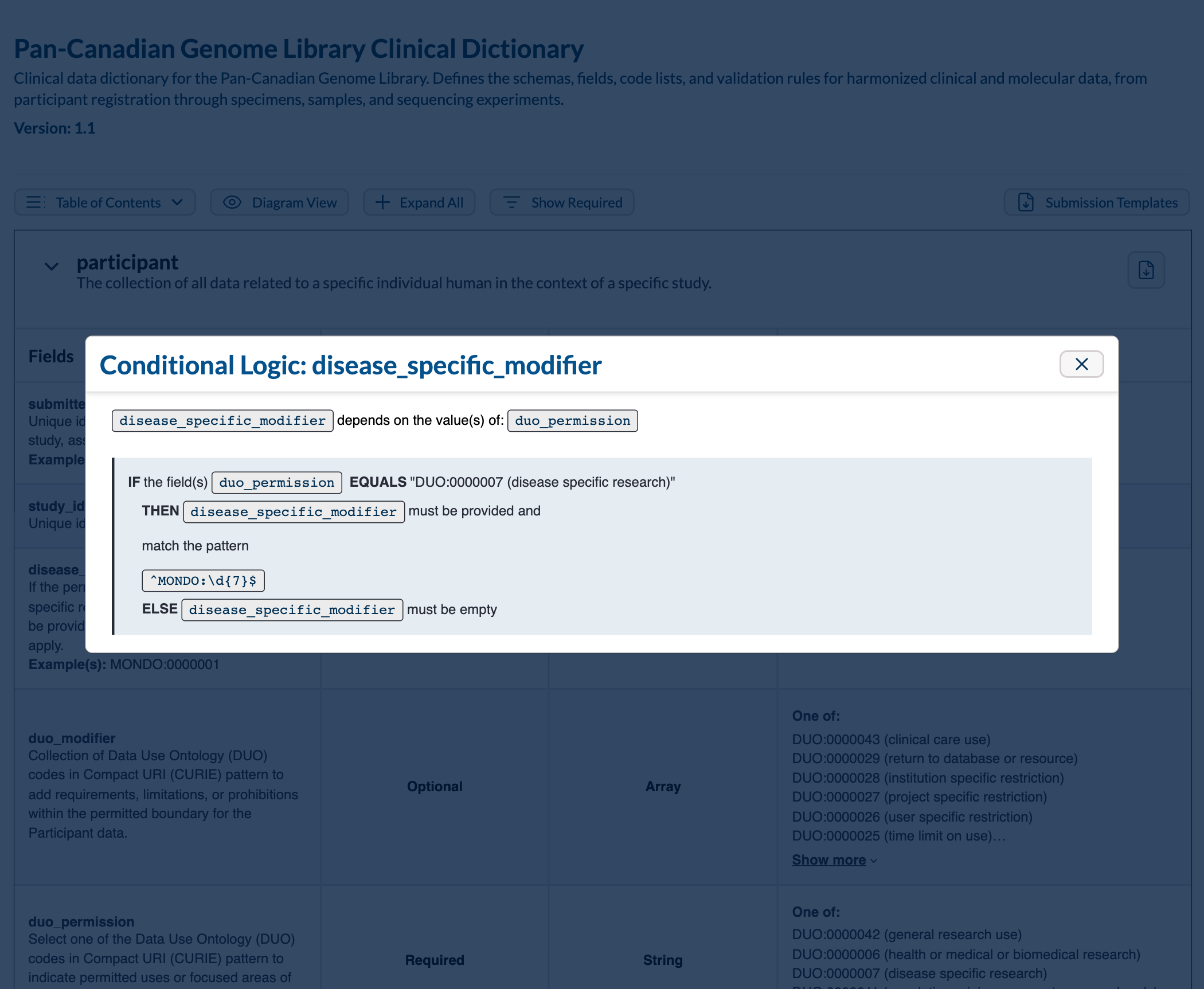
Conditional validation rules (if-then-else dependencies between fields) are shown in a modal. The modal breaks the logic into a structured display so the dependencies and requirements are clear.
Toolbar
The toolbar sits below the dictionary header and controls the view:
| Control | Behaviour |
|---|---|
| Table of Contents | Jumps to a schema by name. |
| Diagram View | Opens the entity relationship diagram. |
| Collapse All / Expand All | Collapses or expands every schema section. |
| Show Required / By Required | Toggles between showing every field and showing only required and conditionally required fields. |
| Filters | Filters whole schemas by dictionary metadata. Only appears when metadata filters are configured. |
| Columns | Shows and hides custom columns. Only appears when custom columns are configured. |
| Submission Templates | Downloads a zip of submission templates for the selected dictionary version. |
Two toolbar behaviours are worth calling out:
- The view opens filtered to required fields. The attribute filter starts active, so the first thing a reader sees is the minimum set of fields they must supply. Toggling it off reveals optional fields as well.
- Submission Templates requires a Lectern server. The button fetches from Lectern's
/dictionaries/template/downloadendpoint and only renders when the Viewer is reading from a Lectern server. It downloads TSV templates by default; CSV is also supported.
Dictionary header and version switching
The header shows the dictionary name and description, with a "Show more" control for long descriptions. When more than one version of the dictionary is available, a version switcher lists each version with its creation date; selecting one re-renders the view against that version.
The switcher changes which version you are looking at. It does not diff two versions; comparing versions is a Lectern Server capability, not a Viewer one.
Linking to a schema or field
The table view reads and writes the URL hash, so any schema or field can be linked to directly:
#specimenopens and scrolls to thespecimenschema.#specimen.donor_submitter_idopens thespecimenschema, scrolls to thedonor_submitter_idfield, and highlights it.
Hovering a field name reveals a hash icon that sets the URL to that field's anchor, so readers can copy a link to a specific field.
The diagram view
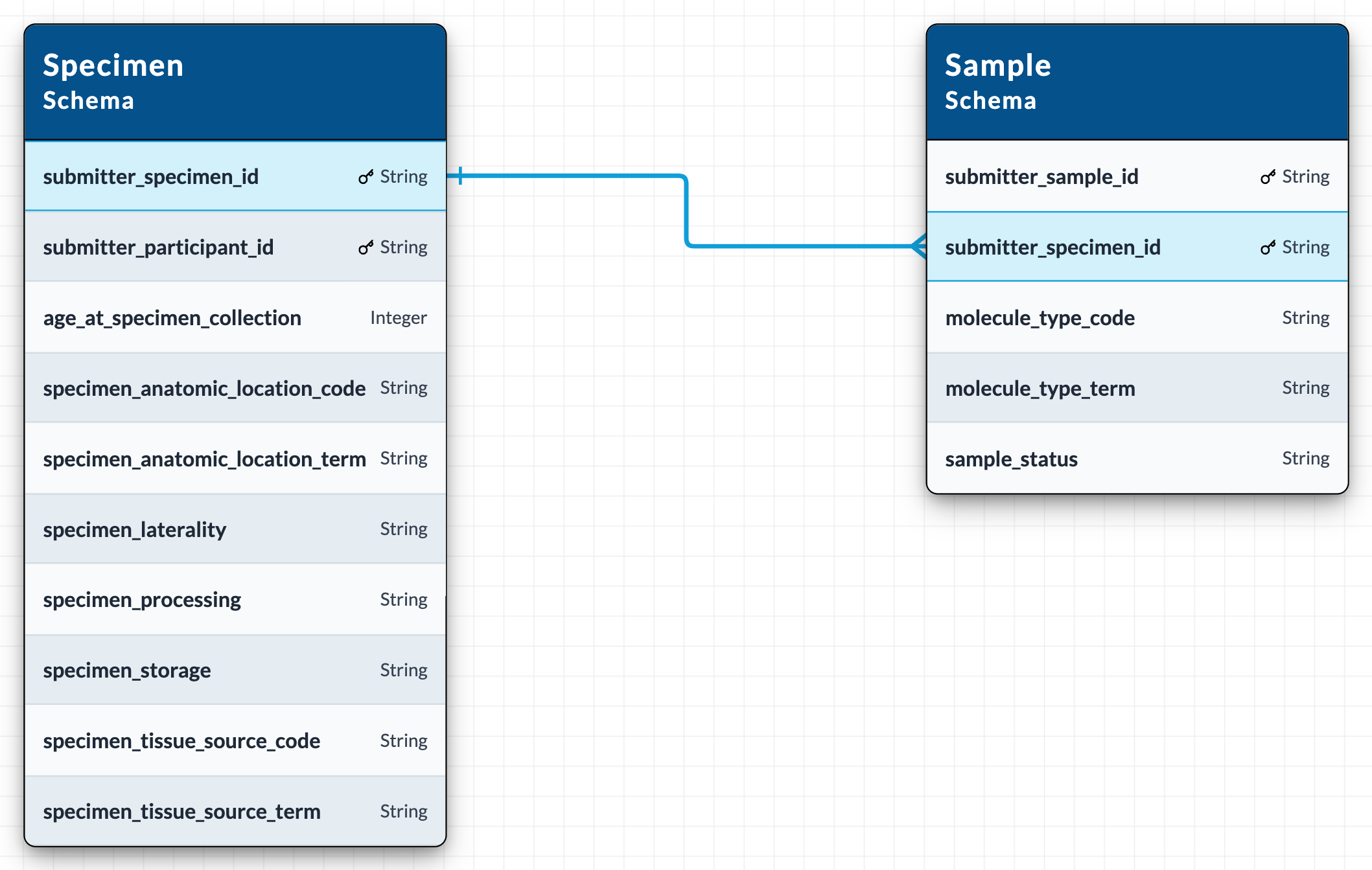
The diagram view draws the dictionary as an interactive entity relationship diagram, showing how schemas connect through primary and foreign keys. It opens in a modal over the table view, either from the toolbar's Diagram View button or from a foreign-key field's Attribute cell.
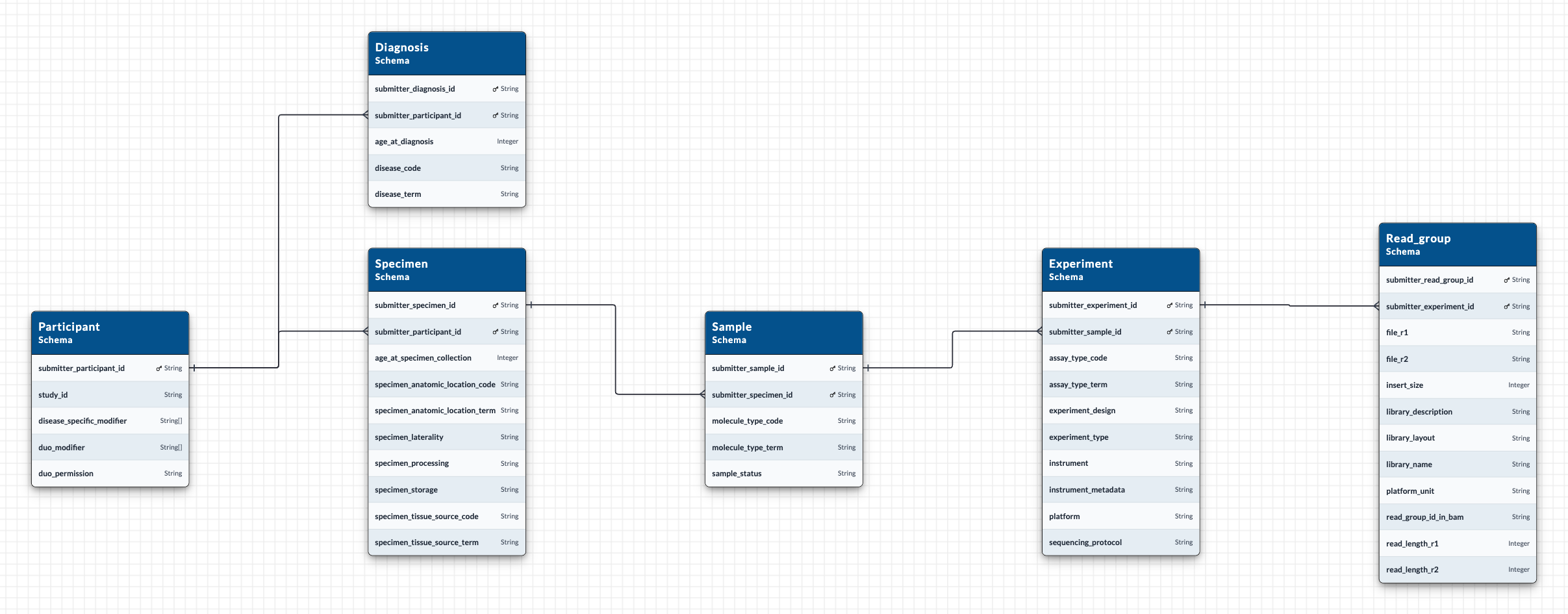
The screenshot above shows six schemas of a seventeen-schema dictionary, which is what fits on a documentation page. The view renders a whole dictionary at once, and supports pan, zoom, and fit-to-view.
The two entry points produce different views:
- From the toolbar: the whole dictionary, auto-laid-out. Clicking an edge highlights that relationship and dims the others; clicking the background clears the highlight.
- From a foreign-key field: only the schemas in that field's relationship chain, with the relevant edges highlighted. This keeps large dictionaries readable when the question is "where does this one field point?"